
Download Instagram Stories, posts and Reels in Chrome
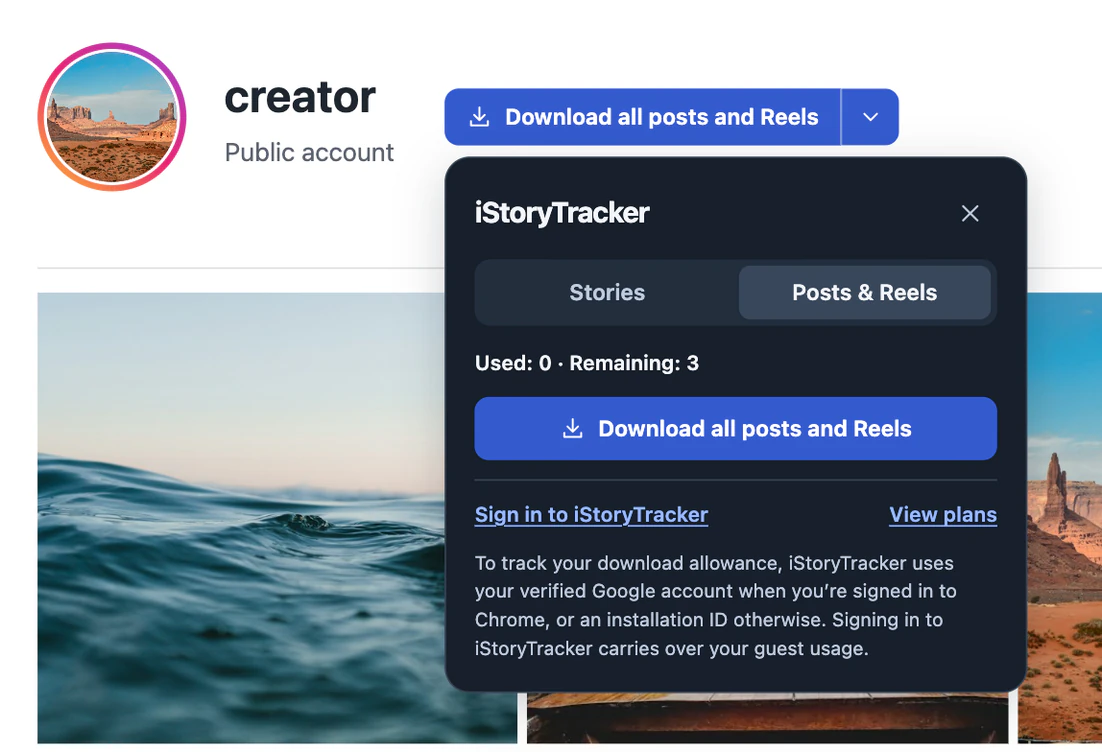
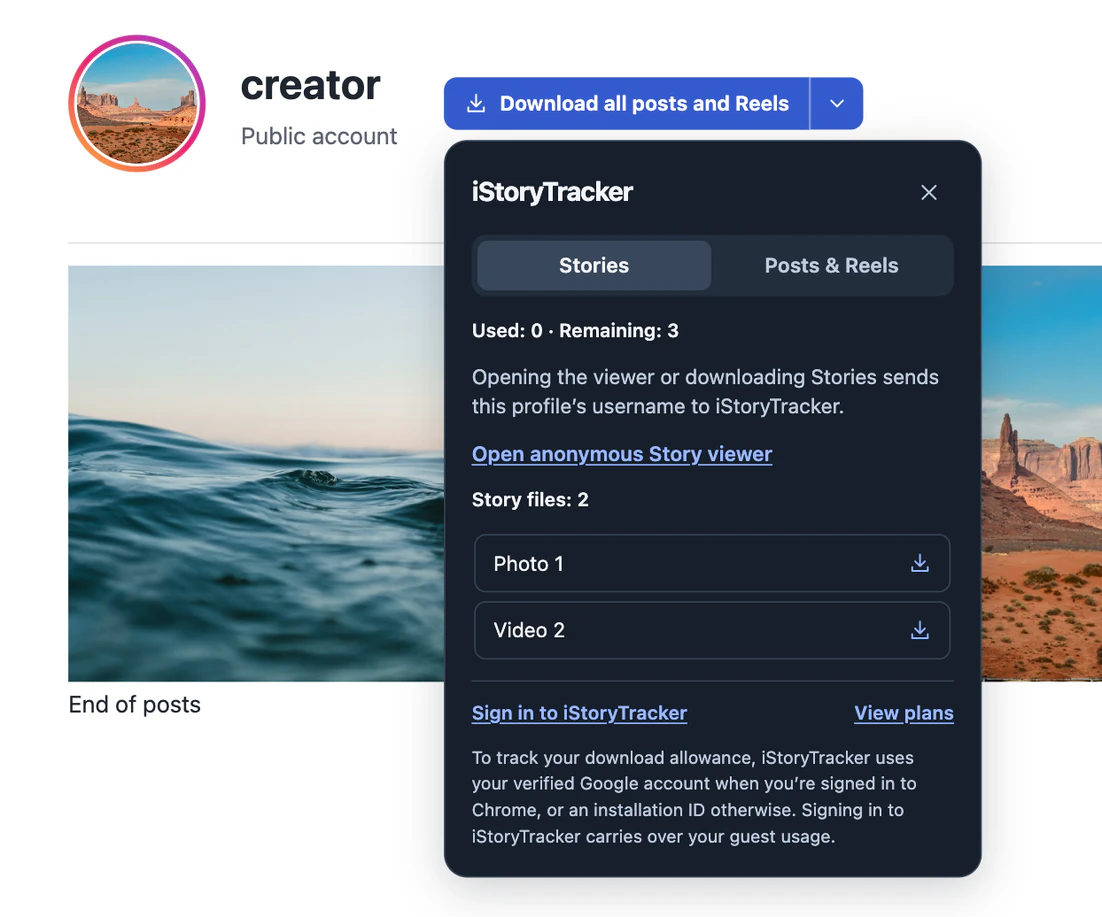
Open a public Instagram profile in Chrome. Click Download all posts and Reels to export the profile to ZIP. To save an available Story photo or video, open the menu beside the download button and choose Stories. Choose Open anonymous Story viewer to open the web viewer with the profile’s username filled in.
How it works
Open the profile
In Chrome, open the public Instagram profile you want to save from. Look for the download controls next to the profile name.
Save a Story
When the profile picture has a Story ring, open Download media and choose Stories. Select Download, then choose a photo or video if several are available. Opening the list uses no download allowance. The web viewer shows blurred previews for free. An active plan unlocks full viewing.
Export posts and Reels
Choose Download all posts and Reels. If your version shows Download media first, open it and select Posts & Reels. The extension checks both lists to the last page, removes duplicates and counts the files in each carousel. You can then follow the file download progress. Large exports may be split across several ZIP files and still count as one export.
Free downloads and paid plans
You get three Story file downloads and three profile exports for free. These are separate, one-time allowances. Signing in to iStoryTracker carries over your guest usage.
With an active plan, a search, a Story file download or a complete profile export each uses one plan credit. The weekly subscription includes 250 uses per period. The monthly subscription and single-month pass each include 1,000.
View plansWhat if Instagram only shows part of a profile?
If the extension cannot verify the end of both grids or a carousel is incomplete, it stops the export and does not charge a download. Only public content that Instagram makes available can be saved.
Open the web Story downloader